
IGNOU ID Card Download: Complete Step-by-Step Guide for New and Existing Students

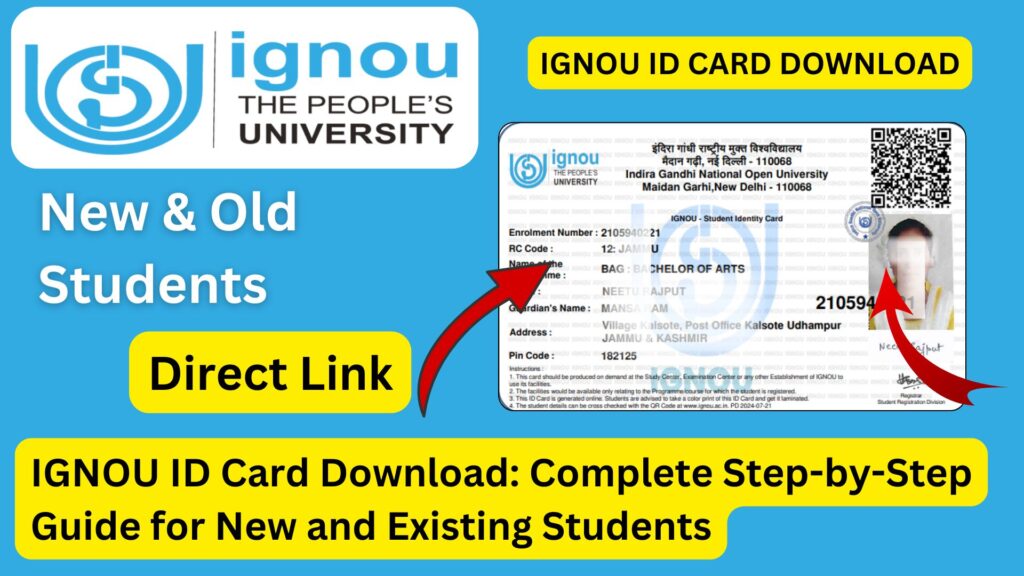
IGNOU ID Card Download: The Indira Gandhi National Open University (IGNOU) is one of the largest open universities in the world, offering quality education to millions of learners across India and abroad. Every year, lakhs of students take admission in IGNOU’s undergraduate, postgraduate, diploma, certificate, and doctoral programmes. One of the first and most important documents a newly admitted student needs is the IGNOU ID Card. The ID Card serves as proof of identity for various purposes, such as attending examinations, accessing study centers, collecting study materials, attending practical classes, and participating in counselling sessions.

However, many students face difficulties in downloading their IGNOU ID Card due to a lack of proper guidance. Some are confused about the exact steps, while others face login-related issues or uncertainty about the correct portal. To help all such students, this article provides a complete, detailed, and updated guide on IGNOU ID Card download, including the process for both fresh and existing students, solutions to common issues, and the importance of the ID Card.
What Is the IGNOU ID Card and Why Is It Important?
The IGNOU ID Card is an official identification document issued by the university to its enrolled learners. The card contains important details of the student such as:
- Name
- Enrolment number
- Programme code
- Session and year
- Contact details
- Student’s photograph
- QR code or barcode (in newer formats)
- Signature of the student
- Signature of the issuing authority
Importance of IGNOU ID Card
- Mandatory for Term-End Examinations (TEE)
Students must show the ID card to enter the examination hall. Without it, they may not be allowed to appear for the exam. - Required for Practical Classes and Workshops
Many programmes like BSc, Nursing, MCA, BCA, and education programmes require compulsory practical sessions. The ID card verifies your identity. - Needed for Collecting Study Materials
At regional centers or study centers, students must show their ID when receiving printed books or materials. - Essential for Counselling Sessions
For face-to-face counselling, the ID card acts as an entry document to attend sessions. - Identity Proof for University Communications
Students need the ID card when submitting forms, requesting services, or interacting with IGNOU staff. - Must for Re-Registration and Admission-Related Queries
Some centers require the ID card for verification during re-registration or programme changes.
Thus, downloading and keeping the IGNOU ID Card safe is essential for every student throughout their academic journey.
How to Download the IGNOU ID Card for Fresh Admission Students?
Students who have taken fresh admission (January or July session) can download their ID card using the IGNOU online admission portal. Below are the detailed steps.
Step-by-Step Process
Step 1: Visit the Official IGNOU Admission Portal
You must visit the same portal where you submitted your admission form.
Step 2: Login to Your Account
Use the following details to log in:
- Registered email address
- Password
- Security code (captcha)
Once logged in, you will reach your admission dashboard.
Step 3: Check Admission Status
Ensure that your admission is confirmed. If your admission status shows “Confirmed,” you are eligible to download the ID card.
Step 4: Click on the Download ID Card Option
A link named “Download ID Card” or “ID Card (PDF)” will appear on your dashboard.
Step 5: Enter Your Password to Open the File
Once downloaded, the PDF file is password-protected.
Password Format:
Your password is your 9 or 10-digit enrollment number.
Step 6: Save and Print the ID Card
Save the ID card on your device and also take a coloured printout. Laminating the card is recommended for long-term use.
How to Download IGNOU ID Card for Existing Students?
Before 2020, ID cards were issued through the old student zone. However, now most students, including those admitted in earlier years, can download their ID cards from the IGNOU Samarth Portal.
Step-by-Step Process for Existing Students
Step 1: Visit Your Regional Centre’s Samarth Portal
Each IGNOU regional centre has its own Samarth website, where students can log in using their enrollment number.
Step 2: Login Using Enrollment Number and Password
If you have not yet created a password, click on the “New User” or “Forgot Password” option.
Step 3: Access Student Dashboard
After successful login, you will reach your profile dashboard.
Step 4: Download ID Card
You will see an option titled “ID Card” or “Download ID Card”.
Click on it to download the PDF.
Step 5: Open the File Using Password
Use your enrollment number as the password.
IGNOU ID Card for Offline Admission Students
Some regional centers still allow offline admissions for specific programmes. Such students often receive a physical ID card directly from the regional center. If they need a digital copy, they must contact their regional center through:
- Helpline number
- Visit in person
The staff will help students download or generate the digital ID card.
Important Points to Remember While Downloading IGNOU ID Card
- Admission Confirmation Is Mandatory
Students whose admission is under review cannot download the ID card. - Use Correct Login Details
Make sure your registered email ID and phone number are active and accessible. - PDF Password Is Your Enrollment Number
Students often forget this and think there must be a different password. - Download Only from Official IGNOU Portals
Never use unofficial websites or third-party agents. - Contact Regional Centre for Any Technical Issue
They can regenerate or resend your ID card if needed. - Always Keep Multiple Copies
Store it in your email, phone, and cloud for safety.
Common Issues in IGNOU ID Card Download and Their Solutions
Problem 1: Unable to Login to Admission Portal
Solution:
Use the “Forgot Password” option and reset the password with OTP verification.
Problem 2: Admission Status Not Confirmed
Solution:
Wait for official confirmation or contact your regional center with payment proof.
Problem 3: ID Card Not Visible in Dashboard
Solution:
This might be because your photograph is not approved yet. Once approved, the ID card option will appear.
Problem 4: Cannot Open PDF File
Solution:
Use the correct password (enrollment number). Also ensure your device supports PDF.
Problem 5: Name or Photograph Incorrect on ID Card
Solution:
Submit a correction request to your regional centre with valid documents.
Problem 6: Samarth Portal Not Working
Solution:
Try again after some time, clear browser cache, or use another browser.
Important IGNOU Links and Information
Below is a helpful table containing essential official links related to IGNOU ID card download and other student services.
| Purpose | Link / Information | Notes |
|---|---|---|
| IGNOU Admission Portal | ignouadmission.samarth.edu.in | For fresh admission students |
| IGNOU Re-Registration | onlinerr.ignou.ac.in | For next-year registration |
| IGNOU Samarth Login (Regional Centres) | rcname.samarth.edu.in | Replace rcname with your RC code |
| IGNOU Student Zone | ignou.ac.in/studentzone | General student information |
| IGNOU Hall Ticket | ignou.ac.in/hallticket | Required for exams |
| IGNOU Grade Card | ignou.ac.in/gradecard | Check marks and results |
| IGNOU Assignment Status | ignou.ac.in/assignmentstatus | Check submission status |
| IGNOU Contact Support | ignou.ac.in/contactus | Helpline and RC contact list |
| ID Card Password | Enrollment Number | Default password for all PDF cards |
FAQ about IGNOU ID Card Download
How can I download my IGNOU ID Card for the first time?
You can download it from the IGNOU admission portal using your registered login credentials after your admission is confirmed.
What is the password to open the downloaded ID Card PDF?
The password is your enrollment number.
Can I download the ID Card without admission confirmation?
No. Your admission must be approved by the regional center.
What if my photograph is not showing on the ID Card?
Your photo may still be under verification. Contact the regional center if it takes too long.
I lost my ID card. Can I download it again?
Yes. You can log in to the portal anytime and download it again.
Is it mandatory to carry a printout of the ID Card for exams?
Yes. You must carry your IGNOU ID Card to the examination hall.
Can I use a black-and-white print of the ID card?
Coloured print is recommended, but black-and-white is usually accepted.
What should I do if there is an error in my details?
Submit a correction request to your regional center with supporting documents.
Can regional centers issue physical ID cards?
Yes, some regional centres provide laminated physical ID cards on request.
Is digital ID card accepted everywhere?
Yes. Digital ID cards are accepted at study centres, practicals, counselling sessions, and examinations.
Conclusion
Downloading the IGNOU ID Card is one of the first and most important steps for every student after taking admission. The process is simple if students follow the correct steps through the official IGNOU admission or Samarth portal. The ID card is a mandatory document for exams, practicals, counselling sessions, study material distribution, and other academic activities. Students should ensure that their admission is confirmed, their login credentials are correct, and their details in the ID card are accurate.
If any issue arises, the regional center is always the best place to seek help. Keeping a soft copy and printed copy of the ID card ensures smooth participation in all university-related processes. With the detailed guide provided above, students can now easily download their IGNOU ID Card and avoid unnecessary confusion.